
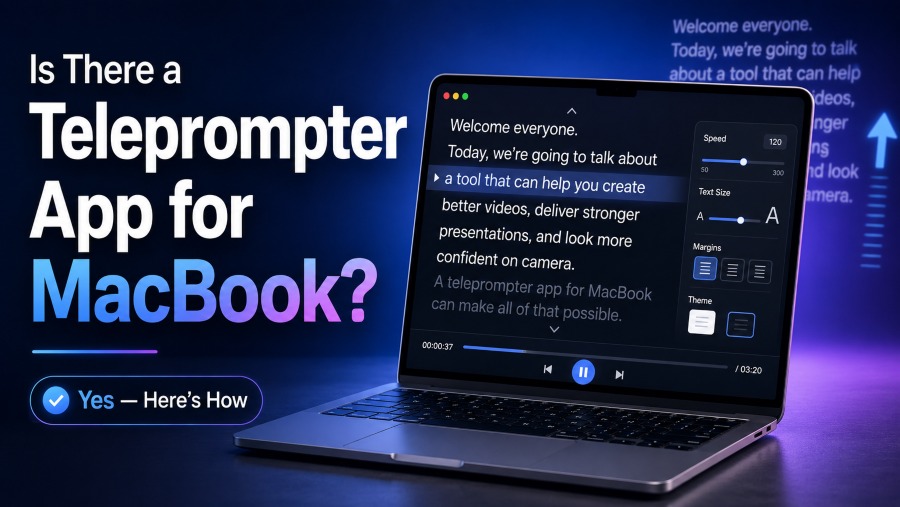
If you are wondering, is there a teleprompter app for macbook, the short answer is yes. MacBook users can choose from simple browser-based tools, downloadable macOS apps, and video recording platforms with built-in script scrolling.
A teleprompter app helps you read a script while maintaining a more natural eye line with your camera. This is useful for YouTube videos, online courses, webinars, sales presentations, interviews, and remote meetings.
The best option depends on how you record. Some people only need a clean scrolling script, while others need camera recording, overlays, remote control, captions, or support for external displays.
This guide explains what MacBook teleprompter apps can do, how to choose one, and how to set up your script so your delivery sounds confident instead of robotic.
A MacBook is a strong device for teleprompting because it combines a large screen, built-in camera, external monitor support, and reliable recording software options.
Many teleprompter tools work directly in a web browser, so you may not need to install anything. These are helpful for quick recordings or practice sessions.
Dedicated macOS apps usually offer more control. They may include script libraries, keyboard shortcuts, mirrored text, adjustable margins, and smoother scrolling.
If you record with an external camera, you can place the MacBook near the lens or connect a second display to improve your reading angle.
For most creators, the right teleprompter app is not the most complicated one. It is the one that makes the script easy to read while keeping your face relaxed and your pacing natural.
What MacBook Teleprompter Options Exist?
Browser-Based Teleprompters
Browser-based teleprompters run in Safari, Chrome, or another web browser on your MacBook. They are convenient because you can paste a script, set the speed, adjust the font size, and start reading almost immediately without downloading a full application.
Dedicated macOS Apps
Dedicated macOS teleprompter apps are built specifically for Mac users who want more control over their workflow. They often include saved scripts, better formatting tools, keyboard control, countdown timers, mirroring, and smoother scrolling for longer recordings.
Video Recording Platforms
Some video recording platforms include teleprompter features inside the recording interface. This setup is useful when you want to read your script and record your webcam at the same time without switching between separate windows.
Presentation Software Workarounds
You can also use presentation software as a basic teleprompter by placing your script in large text and manually advancing through slides. This is not as flexible as a true teleprompter, but it can work for short talks or structured presentations.
External Display Setups
A MacBook can connect to an external monitor, tablet display, or teleprompter glass rig. This makes it easier to position the script closer to the camera lens, which helps reduce the sideways eye movement that can happen when reading from the laptop screen.
Mobile Companion Controls
Some teleprompter apps allow a phone or tablet to act as a remote control. This lets you start, pause, slow down, or speed up the script without touching the MacBook during a recording.
Free and Paid Choices
Free teleprompter apps are often enough for short scripts and occasional videos. Paid tools tend to be better for frequent creators, teams, course builders, and professionals who need reliable script management, recording features, and advanced display options.
How to Pick the Right MacBook App
1. Choose a teleprompter app that matches your recording style, whether you film talking-head videos, host webinars, teach lessons, or present live.
2. Look for speed controls that are easy to adjust, because your reading pace may change once you start speaking naturally.
3. Make sure the text size, line spacing, and contrast are comfortable enough to read from your actual camera position.
4. Check whether the app supports mirroring if you plan to use a professional teleprompter rig with reflective glass.
5. Test the app with a real script before relying on it for important content, because comfort matters more than a long feature list.
Useful Features for MacBook Prompting
- Adjustable Speed: A good app lets you fine-tune scrolling speed so the script follows your natural speaking rhythm.
- Large Text: Clear font sizing helps you read from a distance without squinting or leaning toward the screen.
- Script Library: Saved scripts make it easier to manage recurring videos, course modules, ads, and presentation drafts.
- Mirror Mode: Mirror mode flips the text for use with glass teleprompter hardware and external camera setups.
- Keyboard Shortcuts: Shortcuts let you pause, restart, or adjust the script without breaking your recording flow.
- Recording Tools: Built-in webcam recording can simplify your setup if you want prompting and filming in one place.
- Cloud Sync: Syncing helps you move scripts between devices or collaborate with editors, producers, and teammates.
Setup Tips for Smooth MacBook Recording
Place the Script Near the Lens
Position the teleprompter window as close to your camera as possible. If the script is too far from the lens, viewers may notice your eyes moving away from the audience, especially during longer sentences.
Use Short Script Lines
Shorter lines are easier to read naturally because your eyes do not need to travel across the full width of the screen. Narrow margins can make a MacBook teleprompter feel more like a professional prompting setup.
Format for Speaking
A script written for reading is different from a script written for speaking. Use contractions, short sentences, clear pauses, and simple phrasing so your delivery sounds conversational instead of stiff.
Practice Before Recording
Read the script once or twice before filming. Practice helps you learn where the pace changes, which words need emphasis, and where you should pause instead of chasing the scrolling text.
Control Lighting and Glare
A bright screen can reflect on glasses or create uneven light on your face. Lower the screen brightness, adjust your room lighting, and check a short test recording before filming the full piece.
Keep Edits Easy
Leave small pauses between sections of your script. These pauses make editing easier because you can cut mistakes cleanly without interrupting the rhythm of the final video.
Avoid Overloading the Screen
Do not crowd the teleprompter with dense paragraphs, notes, and reminders. A clean script view keeps your attention on delivery, facial expression, and connection with the viewer.
So, is there a teleprompter app for macbook? Yes, and there are several types depending on how simple or professional your setup needs to be.
For quick recordings, a browser-based teleprompter may be enough. For regular content creation, a dedicated Mac app or recording platform with built-in prompting can save time and improve consistency.
The best app is the one that helps you sound natural, stay on message, and keep your eyes close to the camera. Features matter, but comfort and readability matter more.
Start with a short script, test your setup, and adjust the speed, text size, and camera position until the teleprompter feels invisible.
FAQs About is there a teleprompter app for macbook
Is there a free teleprompter app for MacBook?
Yes, there are free browser-based and downloadable teleprompter options for MacBook. Free tools usually cover basic script scrolling, font sizing, and speed control, which is enough for many simple recordings.
Can I use my MacBook as a teleprompter for Zoom?
Yes, you can open a teleprompter window near your webcam while using Zoom or another meeting app. The key is to keep the script close to the camera so your eye movement looks natural.
Do MacBook teleprompter apps record video too?
Some do, but not all. Basic teleprompter apps only scroll text, while more advanced recording platforms may combine webcam recording, script prompting, captions, and editing tools.
Can I use a teleprompter app with an external camera?
Yes, a MacBook can work with an external camera and a teleprompter app. For the best eye line, place the prompted text as close to the external camera lens as your setup allows.
What is the best text size for a MacBook teleprompter?
The best text size depends on your distance from the screen. Choose a size that lets you read comfortably without leaning forward, and keep lines short enough to scan quickly.
Do I need mirror mode on a MacBook teleprompter?
You only need mirror mode if you are using a reflective glass teleprompter rig. If you are reading directly from the MacBook screen, normal text orientation is usually correct.