
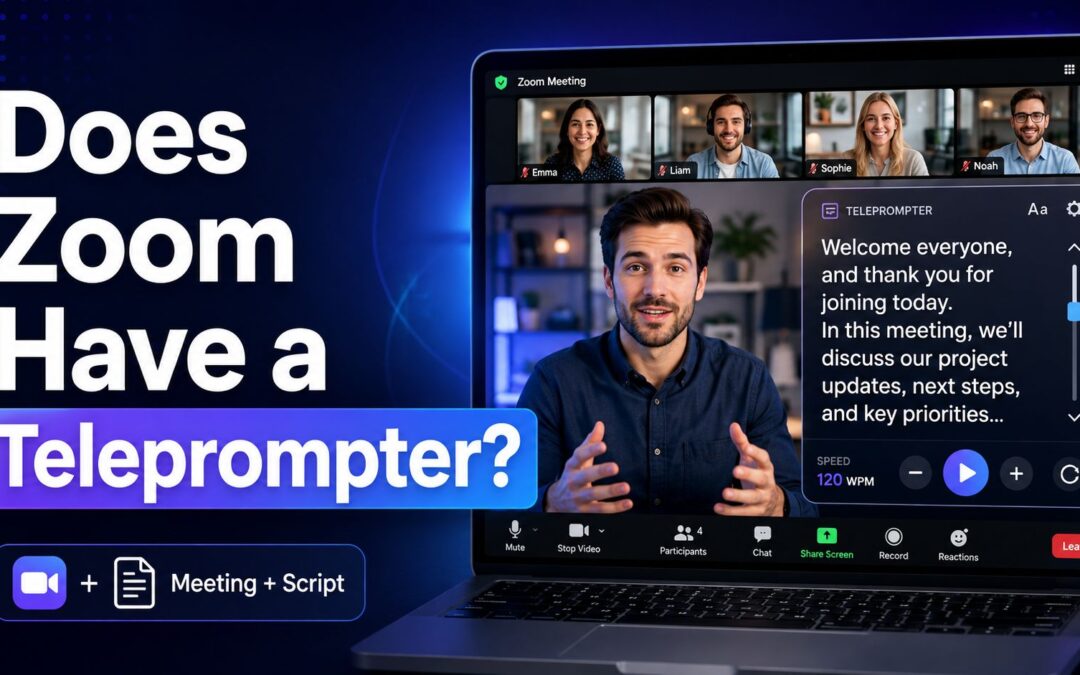
If you are wondering, does zoom have a teleprompter, the short answer is not as a built-in native feature. Zoom offers tools like My Notes and collaborative note-taking, but it does not include a default teleprompter that scrolls a script in front of your camera the way dedicated teleprompter software does.
That distinction matters for anyone who records presentations, leads webinars, runs sales demos, or speaks on camera regularly. A true teleprompter helps you read prepared copy while maintaining eye contact, which is different from simply keeping notes open in another window.
The good news is that Zoom users still have workable options. You can use third-party teleprompter apps, including options available through the Zoom App Marketplace, or you can build a manual setup with a separate screen, browser-based teleprompter, or tablet.
For most users, the real question is not whether Zoom has a teleprompter built in, but which workaround gives the smoothest delivery without making your presentation look stiff or over-rehearsed. The right answer depends on your budget, speaking style, and how polished you need to look on camera.
Zoom is designed first as a meeting and communication platform, not a presentation scripting platform. Its core strengths are video meetings, webinars, chat, recordings, AI-powered notes, and collaboration features.
Because of that focus, Zoom provides note-taking tools rather than a native script-scrolling overlay. Users can rely on My Notes to capture ideas and transcripts, but that is not the same as reading a prepared script line by line while looking into the camera.
This is where confusion often starts. Some people assume any in-meeting notes feature counts as a teleprompter, but a teleprompter normally means adjustable text that scrolls at a controlled speed and stays near your eye line.
If your goal is to sound natural while staying on message, a note panel usually will not solve the whole problem. You may still end up glancing away from the lens, which can reduce audience trust and make your delivery look less confident.
That is why many Zoom presenters turn to external tools or marketplace apps. Instead of asking only whether Zoom includes the feature, it is more useful to compare built-in notes, third-party teleprompters, and simple do-it-yourself setups.
What can you use instead of a Zoom teleprompter?
Zoom App Marketplace tools
As of September 1, 2026, Zoom does not appear to offer a built-in teleprompter feature of its own, but its App Marketplace includes third-party options such as PitchHub Teleprompter. These tools are designed to work alongside Zoom meetings, webinars, and recordings, giving users a more teleprompter-like experience without waiting for a native Zoom release.
Browser-based teleprompter pages
A simple alternative is to open a browser teleprompter on the same screen as Zoom and position it close to your webcam. This setup can work well for short scripts, especially if you enlarge the text and reduce the distance between the script and the camera.
Tablet or phone as a second display
Many presenters place a tablet or phone directly beneath their webcam and run teleprompter text there. This method is inexpensive, easy to test, and often more comfortable than reading from a second monitor placed far off to the side.
Manual script blocks in notes
If you only need a loose outline, Zoom's note-taking tools may be enough. You can keep talking points, opening lines, and key statistics in notes, then glance at them when needed instead of reading a full script word for word.
Separate monitor positioning
A dedicated second monitor can act as a practical teleprompter substitute when positioned near eye level. It is not perfect, but it can dramatically reduce the obvious side-glances that happen when notes are left on a laptop screen below the camera.
Recording outside live meetings
If your presentation is pre-recorded rather than live, you have more flexibility. You can use standalone teleprompter software with your camera and then upload or share the finished video through Zoom afterward, which often gives a cleaner result.
Shorter scripting for natural delivery
In many cases, the best substitute is not more technology but a tighter script. Breaking your message into short sections, cue lines, and headline phrases can reduce the need for a full teleprompter and make your Zoom presence sound more conversational.
Why do presenters want this feature?
1. A teleprompter helps speakers maintain eye contact while still following a prepared message.
2. It reduces the risk of forgetting lines, statistics, or product details during live Zoom sessions.
3. It can make sales pitches, training sessions, and webinars sound more polished and consistent.
4. It supports presenters who feel nervous on camera by giving them a clear structure to follow.
5. It saves editing time in recorded presentations because fewer retakes are usually needed.
Best ways to make Zoom feel like one
- Use marketplace apps: A Zoom-compatible teleprompter app can provide script control closer to a true built-in experience.
- Move text near the lens: The closer your script sits to the webcam, the more natural your eye contact will appear.
- Increase font size: Larger text lets you read comfortably without squinting or leaning toward the screen.
- Slow the script pace: A slightly slower reading speed makes your delivery sound calmer and less robotic.
- Use cue-based scripting: Short prompts often work better than dense paragraphs because they preserve a conversational tone.
- Practice with recordings: A quick test recording shows whether your eyes drift too far from the camera during delivery.
- Keep backup notes ready: A separate outline protects you in case the teleprompter app freezes or becomes hard to read.
How should you choose the right setup?
Consider your presentation type
A live webinar, a one-on-one sales call, and a recorded training video all need different levels of script support. Live sessions usually favor shorter prompts and faster recovery options, while recorded content can justify a fuller teleprompter workflow.
Match the tool to your budget
Some users only need a free browser teleprompter or a notes window, while others may prefer a paid app with better controls and Zoom integration. Spending more only makes sense if video communication is a regular part of your work.
Account for screen space
Your hardware setup affects the result more than many people expect. A small laptop screen can make script reading awkward, whereas a larger monitor or an extra device gives you better placement and easier control.
Think about audience perception
The goal is not to hide that you prepared, but to avoid looking like you are reading mechanically. A good setup should support natural pacing, better posture, and direct engagement rather than turning your face into a moving pair of eyes.
Test before important meetings
Do not assume a teleprompter app will behave perfectly in a live Zoom event. Run a test with your camera, screen layout, and microphone so you can catch timing issues, overlapping windows, or awkward text placement before the real session starts.
Use Zoom notes for support, not substitution
Zoom's built-in note features are useful for summaries, transcripts, and meeting follow-up, but they are better viewed as support tools than as replacements for a teleprompter. They can complement your workflow, yet they do not fully solve on-camera script delivery.
Prioritize simplicity when possible
The best setup is often the one with the fewest moving parts. If a simple tablet under your webcam gives you steady delivery, that may be more reliable than a complicated stack of apps that creates distractions during the call.
So, does zoom have a teleprompter? Not as a native built-in feature. Zoom offers strong meeting, recording, and note-taking tools, but users who need true script scrolling still have to rely on third-party apps or external setups.
That does not mean Zoom is a poor choice for polished presentations. It simply means the teleprompter function sits outside the platform's default toolkit, even though marketplace integrations can help fill the gap.
For occasional use, a simple browser or tablet setup may be enough. For regular webinars, executive messaging, or sales presentations, a dedicated teleprompter app can make a noticeable difference in confidence and delivery quality.
The smartest approach is to choose the least complicated solution that still lets you stay on message and keep your eyes close to the camera. In practice, that matters more than whether the feature is built into Zoom itself.
FAQs About does zoom have a teleprompter
Does Zoom have a built-in teleprompter?
No, Zoom does not currently offer a native built-in teleprompter feature. It has note-taking and transcription tools, but those are different from a scrolling script display designed for on-camera reading.
Can I use a teleprompter with Zoom?
Yes, you can use a teleprompter with Zoom by relying on third-party apps, browser-based teleprompter tools, or a second device such as a tablet placed near your webcam.
Are there teleprompter apps in the Zoom App Marketplace?
Yes, Zoom's App Marketplace includes third-party teleprompter options. Availability can change over time, so it is worth checking the marketplace directly for current app listings and compatibility details.
Is Zoom My Notes the same as a teleprompter?
No, My Notes is a note-taking and transcription feature, not a teleprompter. It helps you capture and organize meeting content, but it does not function like a script that scrolls at your preferred reading speed.
What is the easiest teleprompter workaround for Zoom?
For many users, the easiest workaround is a browser teleprompter or a tablet placed just below the webcam. This approach is simple, low-cost, and often good enough for meetings, short presentations, and video recordings.
Will using a teleprompter make me look unnatural on Zoom?
It can if the text is too far from the camera or if you read too rigidly. With good positioning, larger text, and short script sections, a teleprompter can actually make your delivery look more confident and focused.